I was recently asked via Twitter if you could build from an on-premises Bitbucket server using Visual Studio Team Services. The answer is yes and this post will show you how.
The only assumption I am making is you already have an on-premises Bitbucket server that is exposed to the internet. This post is going to focus on establishing a connection to an on-premises Bitbucket server and not the project being built.
- Log in to Team Services
- Click the Build hub
- Click the green plus
- Select the Empty template
- Click Next
- Select Remote Git Repository
- Check the box for Continuous integration
- Click Create
With the build created, it is now time to connect Bitbucket to Team Services.
- Click the Repository tab
- Click Manage next to Connection
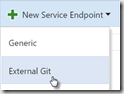
- Click New Service Endpoint
- Select External Git
| Field | Value |
| Connection Name | Bitbucket |
| Server URL | http://{Bitbucket Server}:{Port}/scm/{Project}/{Repo}.git |
| User Name | [Username with permissions to repo] |
| Password/Token Key | [Password for user] |
- Close tab
- Click Refresh button next to Manage
| Field | Value |
| Repository type | External Git |
| Connection | Bitbucket |
| Repository name | [Leave empty, the system will fill it in] |
| Default branch | [Your desired branch] |
| Clean | [Select true or false] |
| Checkout submodules | [Check if you have submodules] |
- Click Save
- Give your build a name
- Click OK
- Click Queue build…
- Click OK
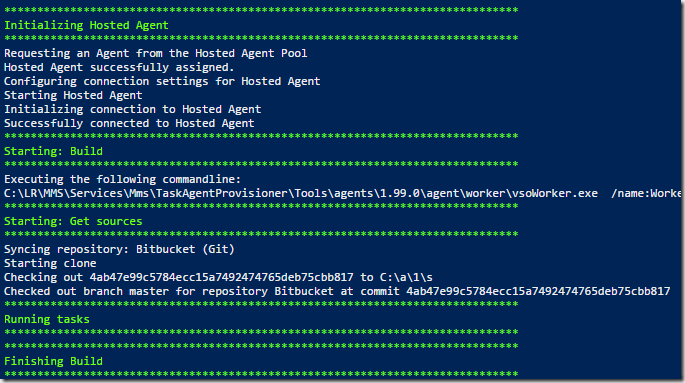
As you can see from the screenshot below, Team Services was able to clone the on-premises Bitbucket repository.